Unit 4
Variables, Conditionals, Functions
Test prepUnit 4 Tests — what to know
Unit 4 has two separate tests, because they check two different skills:
- Unit 4 Code.org Test — checks your ability to interpret App Lab code (the blocks and commands for variables, conditionals, and functions). This is the same skill you'll need for the Create Performance Task, the programming project you submit for the AP Exam.
- Unit 4 AP-Style Test — checks your ability to interpret the type of code you'll see on the AP multiple-choice exam, which looks different from App Lab's blocks.
Both tests cover the same unit content, just in two different code styles — plan to study for both.
Not sure what to focus on for either one? Chat with the AI tutor — tell it which test you're studying for, and it can help you understand what to expect and review the right material.
Select a topic to expand it.
4.1Variables and Expressions
A value is one piece of information. In App Lab there are two kinds you'll use constantly:
| Type | Example | Rule |
|---|---|---|
| Number | 22, 9, 548 | Made of digits, no quotes |
| String | "hi", "c u l8r" | Any characters, inside double quotes |
Declaring a variable
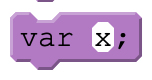
var x;
var declares a variable — it creates a named container that can hold a value, but doesn't put anything in it yet. Declaring the same variable twice in one program doesn't make sense: once var x; has run, x already exists for the rest of the program.
A variable's name uses no quotes, includes no spaces, and must start with a letter.
Declaring and initializing a variable
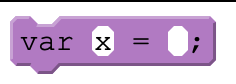
var score = 0;
var playerName = "Alex";
This does both jobs in one line — declares the variable and gives it a starting value. Most of the time, this is the form you'll actually write.
Assigning a value to a variable
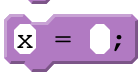
score = 10;
score = 25;
Once a variable exists, = assigns it a new value — no var here, that only belongs on the line that creates the variable. A variable holds exactly one value at a time: score = 25; throws away the 10 that was there before. There's no way to get it back.
This is not the
=from math class. In math,=means "these two things are equal, forever." In programming,=means "put this value in this variable, right now."x = x + 1;would be nonsense in math; in code it just means "add one to whateverxcurrently holds."
Operators and expressions
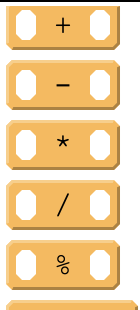
An operator is the fancy name for +, -, *, /, and %. An expression is a combination of operators and values that evaluates to a single value:
var total = 5 - 1;        // total is 4
var doubled = 2 + 3;       // doubled is 5
Strings only work with +, and it means something different there — it concatenates the two strings together instead of adding:
var greeting = "for" + "ever";   // "forever"
var label = "gr" + 8;             // "gr8"
-, *, and / don't make sense on a string — there's no way to "subtract" one piece of text from another. If a string ends up on either side of one of those operators, something's wrong.
A variable can appear inside an expression too — it's swapped out for a copy of the value it holds, then the expression is evaluated as normal:
var bop = 3;
var zip = 5;

var sum = bop + zip;        // sum is 8
var combo = "hi" + zip;      // "hi5"
Variables aren't "connected"
var kit = 1;
var boo = kit + 1;   // boo is 2

kit = 5;              // boo is still 2
boo = kit + 1; copies whatever kit holds at that moment into the expression — it doesn't tie the two variables together. Changing kit afterward does nothing to boo. Assignment only ever moves information one direction, once.
Key takeaways
- Numbers and strings are two different types of values.
var x;declares a variable.var x = 0;declares and initializes in one step.x = 5;assigns a new value to a variable that already exists — never usevarthere.- An expression evaluates to a single new value;
+on strings concatenates instead of adding. - When a variable appears in an expression, only a copy of its value is used — reassigning it later never affects a variable that already copied its old value.
- Assigning a variable a new value throws away whatever it held before, forever.
From class: this is the same idea as the Variables Explore activity's baggies and sticky notes — a baggie (variable) holds one sticky (value) at a time, and assigning a new one means throwing the old sticky away. If the physical version helps it click, that's what it's for; the code above is what you'll actually write.
See Code Commands and Blocks used in App Lab for concatenation in setText(), what happens when a variable changes but the screen doesn't update, and every other App Lab command this unit uses.
4.2Conditionals
A Boolean value is a third kind of value, alongside numbers and strings — it's either true or false, nothing else.
Comparison operators
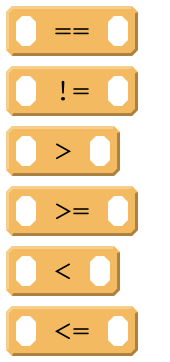
| Operator | Meaning |
|---|---|
< | less than |
> | greater than |
== | equal to |
<= | less than or equal to |
>= | greater than or equal to |
!= | not equal to |
A comparison operator evaluates to a Boolean value — this is what goes inside an if statement's condition:
if (score >= 100) {
  setText("resultLabel", "You win!");
}
Each side of a comparison has to reduce to one value first, then the two get compared — a variable is swapped for the value it holds before anything else happens:
var lives = 4;
var score = 10;

if (lives + 5 < score - 1) {   // 9 < 9 -- false
  setText("resultLabel", "Game over");
}
Any expression that can be evaluated for
trueorfalse— likelives + 5 < score - 1above — is a Boolean expression.
Logical operators
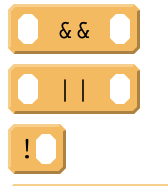
A single comparison isn't always enough — sometimes a decision depends on more than one piece of information. Logical operators combine or negate Boolean values:
| Operator | Meaning |
|---|---|
&& | AND — true only when both sides are true |
|| | OR — true when at least one side is true |
! | NOT — flips true to false and false to true |
if (age >= 13 && age <= 19) {
  setText("resultLabel", "Teenager");
}
Truth tables show every possible result:
a | b | a && b | a || b |
|---|---|---|---|
| true | true | true | true |
| true | false | false | true |
| false | true | false | true |
| false | false | false | false |
! just flips whatever it's given: !true is false, !false is true.
if statement
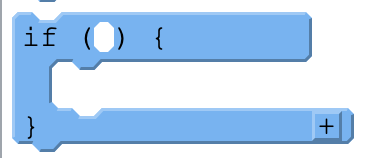
if (condition) {

}
Runs the code inside the { } only if condition evaluates to true. If it's false, that code is skipped entirely.
if-else statement
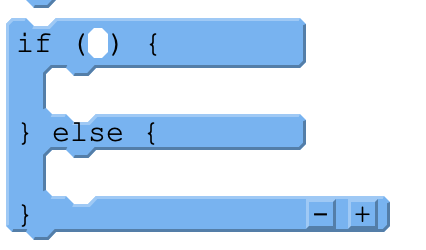
if (age >= 18) {
  setText("statusLabel", "Adult");
} else {
  setText("statusLabel", "Minor");
}
Adds a second block of code that runs whenever condition is false. Exactly one of the two blocks runs — never both, never neither.
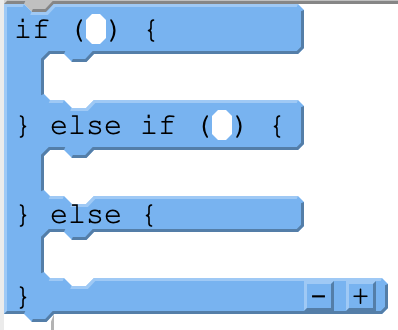
if-else if-else statement
if (temperature > 100) {
  console.log("It's dangerously hot");
} else if (temperature > 90) {
  console.log("It's very hot");
} else if (temperature > 80) {
  console.log("It's hot");
} else if (temperature > 70) {
  console.log("It's warm");
} else {
  console.log("It's cool");
}
Checks conditions in order, top to bottom, and runs the first block whose condition is true — everything after that is skipped, even if a later condition would also have been true. A temperature of 95 matches temperature > 90 and stops there; it never even checks temperature > 80. You can chain as many else if blocks as you need between the first if and the final else.
"if" vs. "when."
onEvent()runs its code when something happens — responding to user input (a click, a key press).ifruns its code if a Boolean expression evaluates totrue— a decision the program makes on its own, based on information it already has. A program can have anifwith noonEvent()at all, and anonEvent()with noifinside it — they answer two different questions.
The MOD operator in practice
% (MOD) — see Code Commands and Blocks used in App Lab — gives you the remainder left over after division, and it earns its keep inside conditionals:
if (number % 2 == 0) {
  console.log("Even");
} else {
  console.log("Odd");
}
Two things it's used for constantly:
- Even or odd: a number is even exactly when
number % 2 == 0— dividing by 2 leaves no remainder. - Divisible by X: a number is divisible by
xexactly whennumber % x == 0.
Key takeaways
- A Boolean value is a data type that is either
trueorfalse. - Comparison operators (
<,>,<=,>=,==,!=) build a Boolean expression — each side reduces to a single value first, then the two are compared. - Logical operators (
&&,||,!) combine or negate Boolean values. ifruns code only when its condition is true;if/elsepicks exactly one of two paths;if/else if/elsechecks conditions top to bottom and runs the first match.- "if" is a decision based on a Boolean expression; "when" (
onEvent) is a response to user input.
From class: this is the same idea as the Conditionals Explore activity — a Boolean value got its own sticky-note color, and a decision was drawn as a flowchart diamond with a
truepath and afalsepath branching out of it. That diamond is anif/else, just drawn instead of coded.
4.3Functions
A function is a named group of programming instructions — also called a procedure. A function call is a command that runs the code inside a function.
Defining a function
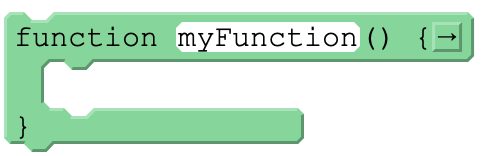
function myFunction() {

}
Creates a reusable, named block of code. The statements inside the { } don't run when the function is defined — only when the function is called.
Calling a function
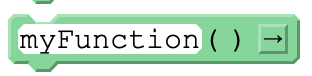
myFunction();
Runs the code inside a function that's already been defined. A function can be called as many times as you need, from anywhere after it's been defined.
The updateScreen() pattern
The single most useful function shape in App Lab is one that re-displays everything on screen based on the program's current variables — call it once to set up the screen, then call it again every time something changes:
var count = 0;
updateScreen();

onEvent("upButton", "click", function() {
  count = count + 1;
  updateScreen();
});

onEvent("downButton", "click", function() {
  count = count - 1;
  updateScreen();
});

function updateScreen() {
  setText("countLabel", count);
  if (count > 20) {
    setProperty("countLabel", "text-color", "green");
  }
}
Notice updateScreen() never appears inside an if by itself deciding whether to update — it's called unconditionally at the end of every event handler that changed something, and it's updateScreen()'s own job to figure out what the screen should show now. That split is the whole point:
- Every
onEvent()handler stays short: change a variable, then callupdateScreen(). - All the display logic lives in one place, instead of being copied into every handler.
- Fixing a display bug means fixing it once, in
updateScreen(), not hunting through every event.
This is the direct fix for the "I changed the variable but the screen didn't update" problem — see the App Lab commands page's "Updating the screen when a variable changes" section. A variable changing is invisible until something calls setText()/setProperty() again, and updateScreen() is that something, called consistently instead of remembered by hand in every handler.
Where to declare your variables
As programs grow past a couple of onEvent() blocks, where a variable is declared starts to matter:
- Use
varonly once per variable. Declaring the same variable twice doesn't help and can cause errors. - Declare variables at the top of the program, outside any function or
onEvent(). This keeps every variable easy to find in one place, for you and for anyone reading your code.
Global vs. local variables
Where a variable is declared with var decides how far it reaches:
| How it works | How it's created | |
|---|---|---|
| Global | Permanent — can be used anywhere in the code | var used outside any onEvent() or function |
| Local | Temporary — can only be used inside the block where it was created; deleted once that block finishes running | var used inside an onEvent() or function |
var clicks = 0;

onEvent("button", "click", function() {
  clicks = clicks + 1;              // updates the global variable
  setProperty("counter", "text", clicks);
});
That's a global variable being updated correctly — no var inside the onEvent(), just clicks = clicks + 1;, the same assignment idea from Variables and Expressions.
Compare it to this, which looks almost identical but does something very different:
var count = 0;

onEvent("button1", "click", function() {
  var count = count + 1;            // creates a NEW, local "count"
});
That var count = count + 1; line declares a second variable that just happens to share the name count. Now there are two separate variables — the global count sitting untouched at 0, and a local count that only exists for the instant this event handler runs, then gets deleted. Changing one never touches the other, and the local one is gone before you'd ever get a chance to display it. This is the same shadowing idea from Variables and Expressions' kit/boo example, one level up: reusing a name doesn't connect two variables, it just makes the inner one temporarily hide the outer one.
For now, avoid
varinside anonEvent()or function. If your code compiles but a variable never seems to update the way you expect, check whether you accidentally re-declared it withvarsomewhere it's used, instead of just assigning it.
Key takeaways
- A function is a named, reusable group of instructions; calling it runs the code inside.
updateScreen()isn't a built-in App Lab command — it's a pattern: one function that renders every variable to the screen, called once at startup and again after every event that changes something.- Declare each variable once, at the top of the program, outside every function and
onEvent(). - A global variable (declared outside any block) can be used and changed anywhere. A local variable (declared with
varinside a block) only exists inside that block and disappears when it finishes. - Reusing
varon a name that already exists doesn't update the original — it creates a second, separate variable that shadows it for as long as the inner block runs.
4.4Code Commands and Blocks used in App Lab
These are the variables, functions, operators, and App Lab commands introduced in Unit 4. Each one is a program statement — a single command or instruction.
Each command is shown as the block you see in App Lab, followed by the same thing written as text so you can read the exact syntax.
Declaring a variable
var x;
Creates a variable — a named container that can hold a value your program computes with or displays. Declaring it makes the name x exist, but nothing is stored in it yet.
Declaring and initializing a variable
var x = 0;
Creates a variable and gives it a starting value in the same statement. Most of the time this is the form you actually use — a variable with no value is easy to forget to fill in later.
var score = 0;
var playerName = "Alex";
Assigning a value to a variable
x = 0;
Changes the value already stored in x. Notice there's no var here — var only belongs on the line that creates the variable. Reusing it on a variable that already exists is unnecessary and can cause confusing bugs later on.
Declaring vs. assigning is one of the most common places to get tripped up:
var x = 0;makesxexist.x = 5;changes what's already there. A variable has to be declared withvaronce, somewhere, before you can assign to it.
Defining a function
function myFunction() {

}
Creates a reusable, named block of code. The statements inside the { } don't run when the function is defined — only when the function is called.
Calling a function
myFunction();
Runs the code inside a function that's already been defined. A function can be called as many times as you need, from anywhere after it's been defined.
function greetPlayer() {
  console.log("Welcome!");
}

greetPlayer();
Mathematical operators
+ - * / %
Used to do arithmetic on numbers, or inside a variable assignment.
| Operator | Meaning |
|---|---|
+ | Addition |
- | Subtraction |
* | Multiplication |
/ | Division |
% | Modulo — the remainder left over after division |
var total = price * quantity;
var isEven = (number % 2 == 0);
Concatenation

var score = 90;
setText("scoreLabel", "Score: " + score);
When outputting the value of a variable, it's usually more useful to show it with a label than as a bare number — 90 means nothing on its own, but Score: 90 does. Concatenation is joining strings together, and it reuses the same + you already know from math — the difference is that + glues text together end-to-end instead of adding numbers.
var name = "Alex";
setText("greetingLabel", "Welcome, " + name + "!");
If either side of a
+is a string, JavaScript concatenates instead of adding — even if the other side is a number."Score: " + 90produces the text"Score: 90", not a math result.
Updating the screen when a variable changes
score = score + 10;
setProperty("scoreLabel", "text", "Score: " + score);
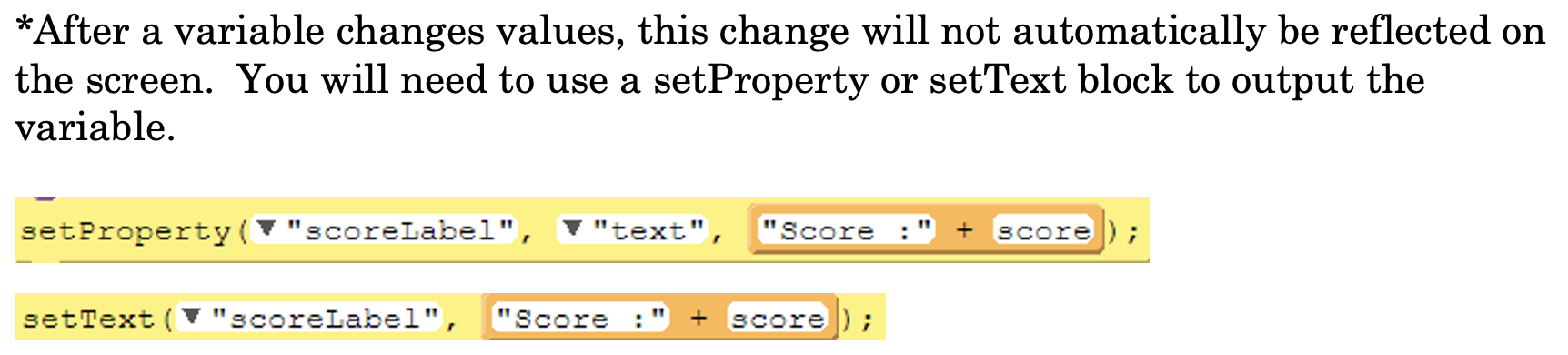
After a variable changes value, that change happens only in memory — it is not automatically reflected on the screen. You have to explicitly call a setProperty() or setText() block afterward to display the new value. (Both are covered in full later on this page; here they're two interchangeable ways to push an updated variable onto the screen.)
setText("scoreLabel", "Score: " + score);
A very common bug: updating a variable, then wondering why the app still shows the old number. The variable did change — the screen just hasn't been told to catch up yet.
Comparison operators
== != > >= < <=
Compares two values and evaluates to true or false. These are what you put inside an if statement's condition.
| Operator | Meaning |
|---|---|
== | Equal to |
!= | Not equal to |
> | Greater than |
>= | Greater than or equal to |
< | Less than |
<= | Less than or equal to |
if (score >= 100) {
  console.log("You win!");
}
Logical operators
&& || !
Combines or negates true/false conditions — usually more than one comparison at once, inside a single if statement.
| Operator | Meaning |
|---|---|
&& | And — true only when both sides are true |
|| | Or — true when at least one side is true |
! | Not — flips true to false and false to true |
if (age >= 13 && age <= 19) {
  console.log("Teenager");
}
if statement
if (condition) {

}
Runs the code inside the { } only if condition evaluates to true. If it's false, that code is skipped entirely — the program just moves on to whatever comes after the closing }.
if (score >= 100) {
  setText("resultLabel", "You win!");
}
if-else statement
if (condition) {

} else {

}
Adds a second block of code that runs whenever condition is false. Exactly one of the two blocks runs — never both, never neither.
if (age >= 18) {
  setText("statusLabel", "Adult");
} else {
  setText("statusLabel", "Minor");
}
if-else if-else statement
if (condition1) {

} else if (condition2) {

} else {

}
Checks conditions in order, top to bottom, and runs the first block whose condition is true — everything after that is skipped, even if a later condition would also have been true. The final else is a catch-all: it only runs if none of the conditions above it matched. You can chain as many else if blocks as you need between the first if and the last else.
if (temperature > 100) {
  console.log("It's dangerously hot");
} else if (temperature > 90) {
  console.log("It's very hot");
} else if (temperature > 80) {
  console.log("It's hot");
} else if (temperature > 70) {
  console.log("It's warm");
} else {
  console.log("It's cool");
}
See Conditionals for how to build the condition itself out of comparison and logical operators, and for what "if" means as opposed to "when" (onEvent).
getNumber()
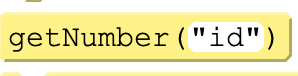
getNumber("id");
Reads whatever number a user typed into an input element and returns it, so it can be stored in a variable or used in a calculation.
var age = getNumber("ageInput");
getText()
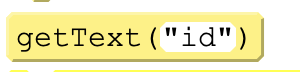
getText("id");
Reads the current text out of a UI element, such as a text input, and returns it.
var name = getText("nameInput");
setText()

setText("id", "text");
Sets the displayed text of a UI element to a new value.
setText("greetingLabel", "Hello, " + name);
setImageURL()

setImageURL("id", "url");
Changes which image an image element displays.
setImageURL("petPhoto", "dog.png");
console.log()

console.log("message");
Outputs information in the console. Useful in debugging to check information in your app.
The output is only seen by the developer, not by the user of the app. Putting
console.logstatements through your code is one of the fastest ways to find out which parts are actually running.
setProperty()

setProperty("id", "property", "value");
Changes the look or property of a user interface element. For example, you can change the text in a text box or change the color of a button.
The three parts:
| Part | Meaning |
|---|---|
"id" | Which element to change |
"property" | What about it to change — "text", "background-color", "image" |
"value" | What to change it to |
setProperty("scoreLabel", "text", "Score: 10");
setProperty("playButton", "background-color", "green");
setScreen()

setScreen("screenId");
Sets the screen of the app — this is how you move a user from one screen to another.
setScreen("gameScreen");
playSound()

playSound("url", "loop");
Plays audio. It takes two parameters:
| Parameter | Meaning |
|---|---|
| First | The file or URL of the audio file |
| Second | Whether you want the audio to loop |
playSound("sound://category_hits/hit_1.mp3", false);
onEvent()
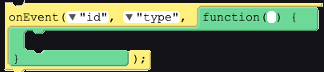
onEvent("id", "type", function() {

});
The code inside an onEvent() block runs when triggered by an event, such as a mouse click or a key press.
| Part | Meaning |
|---|---|
"id" | Which element to watch |
"type" | What to watch for — "click", "keypress" |
function() { } | The code to run when it happens |
onEvent("dogButton", "click", function() {
  setProperty("dogImage", "image", "dog.png");
});
This is the block that makes an app event-driven. Everything inside it waits for the user.
randomNumber()

randomNumber(1, 10);
Generates a random number between the first number and the second number, inclusive. "Inclusive" means both endpoints can come up — randomNumber(1, 10) can return 1 and can return 10.
setProperty("diceLabel", "text", randomNumber(1, 6));
Quick reference
| Command | What it does |
|---|---|
var x; | Declares a variable |
var x = 0; | Declares a variable and gives it a starting value |
x = 0; | Assigns a new value to a variable that already exists |
function myFunction() { } | Defines a reusable block of code |
myFunction(); | Runs a previously defined function |
+ - * / % | Mathematical operators |
"a" + "b" | Concatenation — joins strings (and variables) into one string |
| (reminder) | A changed variable needs setProperty() or setText() to show on screen |
== != > >= < <= | Comparison operators — true or false |
&& || ! | Logical operators — and, or, not |
if (c) { } | Runs the block only if c is true |
if (c) { } else { } | Runs one block or the other |
if (c) { } else if (c) { } else { } | Checks conditions in order; first true one wins |
getNumber() | Reads a number from an input element |
getText() | Reads text from an input element |
setText() | Changes the displayed text of an element |
setImageURL() | Changes the image an element displays |
console.log() | Outputs to the console, for the developer only |
setProperty() | Changes the look or property of an element |
setScreen() | Switches to a different screen |
playSound() | Plays audio, with a loop option |
onEvent() | Runs code when an event is triggered |
randomNumber() | Random number between two values, inclusive |
App Lab block images are from Code.org's AP Computer Science Principles curriculum, used here for classroom instruction. Code.org curriculum is released under CC BY-NC-SA.